You've translated your first batch of videos. The subtitle tracks are live. The geography report is lighting up with new countries. Congratulations — your channel is officially global. But translation isn't a set-it-and-forget-it process. Videos evolve. You update thumbnails, tweak titles, add new information to descriptions. Maybe a translation didn't come out quite right and needs editing. Maybe you want to remove translations from a market that isn't responding. Maybe you uploaded a new version of a video and need to re-translate. Managing 100+ language tracks sounds overwhelming on paper. In practice, VidLocalizer's management dashboard makes it straightforward. This guide covers every maintenance task you'll encounter as a global creator — editing, updating, removing, and optimising your translated content.
⏱ Estimated reading time: 10 minutes | 🔧 Difficulty: Intermediate | 📋 Prerequisite: Completed first translations
The Translation Management Dashboard
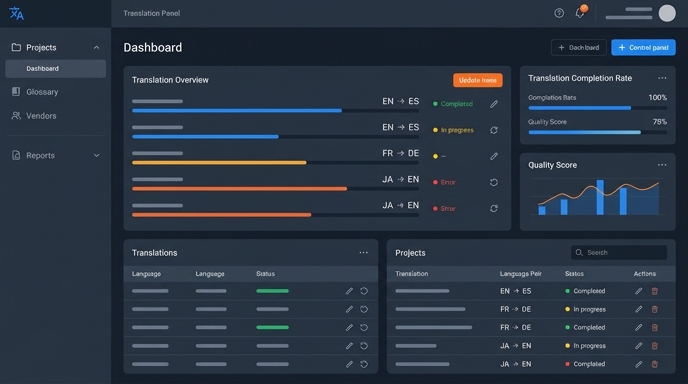
Before diving into specific tasks, let's understand where everything lives. VidLocalizer's management interface is organised around three core views:
| View | What It Shows | When to Use It |
|---|---|---|
| Video List View | All your videos with translation status indicators. Green checkmark = translated. Grey dash = not translated. Orange dot = translation needs update. | Getting an overview of your channel's translation coverage. Spotting videos that need attention. |
| Single Video View | Detailed view of one video: all translated languages, preview of each, edit buttons, last update timestamps. | Editing specific translations. Checking translation quality. Removing languages from one video. |
| Bulk Operations View | Multi-video selection with batch actions: re-translate, update, remove translations, push to YouTube. | Updating multiple videos at once. Re-translating after major content changes. Batch removal. |
💡 Navigation tip: From anywhere in VidLocalizer, click the channel name in the top bar to return to the main Video List View. Your place is always saved.
Task 1: Editing a Single Translation
Sometimes one language needs a tweak. A brand name that shouldn't have been translated. A technical term that sounds off. A title that's too long for YouTube's character limit in a specific language.
When to edit individual translations:
- ✅ Brand or product names were incorrectly translated (e.g., "Samsung" became a translated word)
- ✅ A technical term in your niche needs a specific translation
- ✅ The translated title exceeds YouTube's 100-character limit
- ✅ A subtitle line reads awkwardly and you know the correct phrasing
- ✅ You want to add localised keywords to a specific language's description
Step-by-step editing process:
- From the Video List View, click on the video you want to edit
- The Single Video View opens, showing all 100+ translated languages
- Use the language filter dropdown to find your target language quickly
- Click the Edit icon (pencil symbol) next to the field you want to modify:
- Title field — click to edit the translated title
- Description field — click to edit the translated description
- Subtitles tab — click to view and edit individual subtitle lines
- Make your changes in the inline editor that appears
- Click Save to store your edit locally
- Click "Push to YouTube" to send the updated translation live
⚠️ Important: Saving an edit stores it in VidLocalizer but doesn't update YouTube. You must click "Push to YouTube" for the change to go live on your channel. Unsaved edits show an orange indicator.
What happens after editing:
- The updated translation replaces the previous version on YouTube
- YouTube re-indexes the updated metadata for search
- Viewers see the new translation immediately
- The edit history is preserved in VidLocalizer for 30 days
Task 2: Bulk-Updating Translations After Content Changes
You've updated a video. New title. Revised description. Added chapters. Now you need those changes reflected across all 100+ translated versions. Doing it manually is impossible. Bulk update makes it effortless.
Common scenarios requiring bulk updates:
| Scenario | What Changed | Action Needed |
|---|---|---|
| Title optimisation | You improved the Russian title for better CTR | Re-translate titles in all languages |
| Description update | You added new links, timestamps, or information | Re-translate descriptions in all languages |
| Video re-upload | You fixed an error and re-uploaded the video | Full re-translation: titles, descriptions, subtitles |
| Correction notice | You added a correction to the description | Re-translate descriptions in all languages |
| Chapter addition | You added timestamp chapters to the description | Re-translate descriptions; timestamps stay universal |
How to perform a bulk update:
- First, update your original Russian metadata on YouTube directly (through YouTube Studio)
- Open VidLocalizer and go to the Video List View
- Check the boxes next to the videos you've updated
- Click the "Bulk Actions" button that appears at the top
- Select "Re-translate Selected" from the dropdown menu
Bulk action options explained:
| Option | What It Does | Best For |
|---|---|---|
| Re-translate All | Regenerates titles, descriptions, and subtitles for all selected videos in all languages. Overwrites existing translations. | Major content changes. Video re-uploads. |
| Re-translate Titles Only | Regenerates only titles. Preserves existing descriptions and subtitles. | Title optimisation. A/B test winners. |
| Re-translate Descriptions Only | Regenerates only descriptions. Preserves titles and subtitles. | Link updates. Correction notices. Chapter additions. |
| Re-translate Subtitles Only | Regenerates only subtitle tracks. Preserves titles and descriptions. | Subtitle quality improvements. Format changes. |
- Choose the appropriate re-translation option
- Select languages — "All Languages" is recommended unless you have a specific reason
- Click "Generate"
- Review the preview if desired
- Click "Push to YouTube"
💡 Efficiency tip: Keep a list of videos you update in YouTube Studio. Once a week, open VidLocalizer, select those videos, and run a bulk re-translation. Five minutes maintains your entire global library.
Task 3: Removing Translations
Sometimes you need to remove translations. A market didn't respond. A translation has an error you can't fix quickly. You're rebranding and want a clean slate.
Valid reasons to remove translations:
- ✅ You're testing which languages matter and removing underperformers
- ✅ A specific language translation has persistent quality issues
- ✅ You're rebranding your channel and want to start fresh
- ✅ You accidentally translated a Russia-specific video that doesn't travel
- ❌ Not a valid reason: "I'm impatient and don't see results after one week" — give it at least three weeks
How to remove translations from one video:
- Open the Single Video View for the target video
- In the language list, find the language you want to remove
- Click the three-dot menu next to that language
- Select "Remove Translation"
- Choose what to remove:
- Title and description only — keeps subtitles intact
- Subtitles only — keeps metadata intact
- Everything — removes all translated content for that language
- Confirm the removal
- Click "Push to YouTube" to sync the removal
How to remove translations in bulk:
- From the Video List View, select multiple videos
- Click "Bulk Actions"
- Select "Remove Translations"
- Choose scope:
- Remove specific languages — pick which languages to remove from all selected videos
- Remove all translations — wipes all translated content from selected videos (Russian original stays)
- Confirm and push
⚠️ Warning: Removing translations also removes the subtitle tracks from YouTube. Viewers who rely on those subtitles will lose access. Remove strategically, not impulsively.
Task 4: Checking Translation Status Across Your Channel
As your channel grows, keeping track of which videos are translated and which aren't becomes essential. VidLocalizer's status indicators make this visible at a glance.
Understanding status indicators:
| Indicator | Meaning | Action Needed |
|---|---|---|
| 🟢 Green checkmark | Video is fully translated in all selected languages. Metadata is synced with YouTube. | None. Everything is up to date. |
| 🟡 Orange dot | Video was translated, but the original Russian metadata has changed since the last translation. Translations may be outdated. | Run a re-translation to sync with updated Russian content. |
| ⚪ Grey dash | Video has not been translated yet. | Select and translate if the content is suitable for global audiences. |
| 🔴 Red exclamation | Translation push failed. Metadata may not be live on YouTube. | Check your YouTube API connection. Re-authenticate if needed. Push again. |
How to audit your channel:
- Open the Video List View
- Use the Status filter dropdown to show:
- "Needs Update" — videos with orange dots that need re-translation
- "Not Translated" — videos with grey dashes awaiting first translation
- "Push Failed" — videos with red exclamations needing attention
- Address each category systematically
- Aim for all green checkmarks across your global-ready content
Task 5: Reconnecting Your YouTube Channel
Occasionally, the connection between VidLocalizer and YouTube needs to be refreshed. This is normal API behaviour and takes thirty seconds to fix.
When reconnection is needed:
- You changed your Google account password
- YouTube's API token expired (typically every few months)
- You revoked VidLocalizer access through Google Account settings and want to reconnect
- You're switching to a different YouTube channel
- The dashboard shows a "Connection Lost" warning
How to reconnect:
- In VidLocalizer, click Settings (gear icon, top right)
- Select "Channel Connections"
- Find your current connection — it will show as "Expired" or "Disconnected"
- Click "Reconnect"
- You'll go through the same Google OAuth process as initial setup
- Select your YouTube channel
- Click Allow
- Connection restored. All your previous translations are preserved.
💡 Note: Reconnecting doesn't affect your existing translations. All subtitle tracks and metadata remain on YouTube exactly as they were. Reconnection simply restores VidLocalizer's ability to manage them.
Task 6: Managing Translations Across Multiple Channels
Some creators manage more than one YouTube channel. VidLocalizer supports multiple channel connections under one account.
How to add a second channel:
- Click Settings → Channel Connections
- Click "Add Channel"
- Go through the OAuth process with the Google account linked to your second channel
- The new channel appears in your dashboard
- Switch between channels using the channel switcher dropdown in the top navigation bar
Multi-channel management tips:
- Each channel has its own Video List View, language settings, and translation history
- Subscription plans typically cover one channel — check your plan for multi-channel pricing
- Translations are not shared between channels. Each channel's content is translated independently
- Label your channels clearly if you manage several — use distinct channel names on YouTube to avoid confusion in the switcher
Maintenance Schedule: Keeping Your Global Channel Healthy
Consistency beats intensity. Here's a recommended maintenance schedule for your translated content:
| Frequency | Task | Time Required |
|---|---|---|
| Every upload | Translate new video immediately after publishing | 2 minutes |
| Weekly | Check status indicators. Re-translate any videos with orange dots (outdated translations). | 10 minutes |
| Monthly | Full channel audit. Check Geography report in YouTube Studio. Identify winning and underperforming markets. Adjust language priorities. | 30 minutes |
| Quarterly | Review translation quality. Spot-check 5-10 translations in your top languages. Edit if needed. Remove translations from markets that consistently underperform after 3+ months. | 1 hour |
| As needed | Reconnect YouTube channel if connection drops. Bulk re-translate after major content updates. | 5-15 minutes |
Frequently Asked Questions About Managing Translations
Will re-translating a video reset its view counts or rankings?
No. Updating metadata through the API doesn't reset views, watch time, or search rankings. YouTube treats it as a metadata update, not a new upload. Your existing performance data remains intact.
What happens if I push translations for a video that already has translations?
The new translations overwrite the old ones. YouTube replaces the previous subtitle tracks and metadata with the updated versions. Viewers see the new translations immediately.
Can I recover translations I accidentally removed?
If you removed translations through VidLocalizer but haven't pushed the removal to YouTube yet, they're still recoverable — just don't push. If you already pushed the removal, you'll need to re-generate the translations. VidLocalizer doesn't store deleted translation history beyond 30 days.
How do I know if my translations are actually live?
Always verify in YouTube Studio after pushing. Go to a video → Subtitles tab → check that language tracks appear. For titles and descriptions, use the language dropdown in the Details tab. VidLocalizer shows a success message after pushing, but YouTube Studio is the source of truth.
Quick Reference: Management Actions at a Glance
| I want to... | Where to go | What to click |
|---|---|---|
| Fix one bad translation | Single Video View | Edit icon → edit field → Save → Push to YouTube |
| Update translations after changing my Russian title | Bulk Actions | Select videos → Re-translate Titles Only → Push |
| Remove Portuguese from three videos | Bulk Actions | Select videos → Remove Translations → Select Portuguese → Push |
| Find all videos with outdated translations | Video List View | Status filter → "Needs Update" |
| Reconnect after changing Google password | Settings | Channel Connections → Reconnect |
| Add a second YouTube channel | Settings | Channel Connections → Add Channel |
Translation management isn't exciting, but it's what separates channels that succeed globally from channels that try translation once and let it decay. Make maintenance a habit. Keep your status indicators green. Your global audience deserves content that's as current in their language as it is in yours.
Localize your YouTube channel today
3-day free trial · 80+ languages · cancel any time